Controls
Blue Lock: Rivals controls for PC, Xbox, PlayStation and mobile: which inputs map to shooting, passing, tackling, sprinting and awakening, plus the settings worth changing first.
Introduction
Controls in Blue Lock: Rivals vary by device, and most disagreements about them come from confusing layout with settings. The action families are consistent: one input family for passing, one for shooting, one for tackling and sprinting, and a separate trigger for style abilities and awakening. What changes is where those families sit on a keyboard, a controller or a touch screen. This hub maps the families per platform and then covers the settings that make the biggest practical difference to responsiveness: camera, sensitivity and performance options. We do not publish exact keybinds because the research for this site could not verify a reliable mapping, and a wrong keybind guide is worse than no guide at all. Where a mapping is unconfirmed we say so and describe the action instead.
Input Families By Platform
| Platform | Input type | Practical note |
|---|---|---|
| PC | Keyboard and mouse | Rebind actions you use every possession; keep the rest default |
| Xbox | Controller | Keep shooting and passing on separate fingers where possible |
| PlayStation | Controller | Mirror the Xbox layout and re-learn the face-button positions |
| Mobile | Touch | Increase button size before increasing sensitivity |
Platform Topics
PC Setup
Keyboard and mouse gives the most precise aiming and the easiest rebinding. The useful changes are small: move the actions you press every possession closer together, and leave the rarely used ones where they are so you do not rebuild muscle memory twice.
Console Layout
Xbox and PlayStation layouts are the same family of actions with different labels. The habit worth building is keeping shooting and passing on separate fingers, because a layout that forces one thumb to do both makes the fast combinations that decide matches physically impossible.
Mobile Controls
Touch layouts are the most sensitive to sizing. Increasing button size improves accuracy far more than increasing sensitivity, and reducing visual clutter on a small screen often matters more than any single setting buried in the menu, especially on older phones. Start with the layout, then tune the numbers once your inputs are landing consistently.
Camera And Sensitivity
Camera and sensitivity are personal, but the direction of travel is consistent: start lower than you think, raise slowly, and change one value at a time. Big jumps reset your aim and make every session feel like the first one you ever played.
Core Mechanics
The control layer is mostly about removing friction. Rivals asks you to pass, shoot, tackle and trigger an ability, often within a couple of seconds, so any layout that forces your hand to travel across the input device costs you a window. The practical approach is to identify the two or three actions you use every possession and make those as easy to reach as possible, then leave everything else alone. This is why we discourage copying a full keybind set from a creator: their hands, device and habits are not yours. The settings menu matters for the same reason, and the most valuable changes are usually the least exciting ones, such as a camera height you can read consistently rather than a sensitivity number that feels fast for one session.
Advantages
Getting controls right early pays off for the rest of your time with the game. A layout that fits your hands makes technique practice possible, because you stop fighting the input and start working on timing. It also reduces the frustration that leads players to blame a style or a patch for problems that are really about reaching the wrong button. Finally, a settled setup makes improvement measurable: if you are not changing your controls every week, you can actually tell whether a technique session helped, which is the only way to build a reliable sense of what works for you.
Challenges
The main limitation is documentation. Community sources disagree about exact mappings, platform updates change touch layouts, and Roblox itself can change how inputs behave across devices. That is why this hub describes action families rather than publishing a definitive keybind table, which would look authoritative and be wrong within a patch. The other challenge is that settings are personal: advice that transforms one player's aim can ruin another's, so the pages emphasise method, one change at a time, over specific numbers. Readers who want a copy-paste configuration will find the guidance here deliberately less prescriptive, and players who need exact binds should confirm them in the game's own settings menu before relying on any third-party list.
Frequently Asked Questions
Can I change my keybinds?+
Which platform is easiest for beginners?+
Why do my inputs feel delayed?+
Quick Tips
Change one setting per session and write down what you changed. Controls are the area where players most often create their own problems by adjusting five things at once, then losing track of which change helped. A single change gives you a clean comparison, and after a few sessions you will have a setup that is genuinely yours rather than a snapshot of someone else's preferences.
Prioritise button size over sensitivity on mobile. On a touch screen, a button you can hit reliably is worth more than a fast camera, because the most common mobile failure is a missed input rather than a slow reaction. Once your inputs are landing consistently, small sensitivity adjustments become meaningful instead of just adding instability to an already unreliable setup.
If a technique keeps failing, check whether you can physically reach the input before you blame the technique. Several skill moves require two actions close together, and a layout that forces your hand to travel will make them feel impossible even when the timing is right. Fixing the layout is usually faster than grinding the move, and it removes a source of frustration that has nothing to do with your level of skill.
Featured
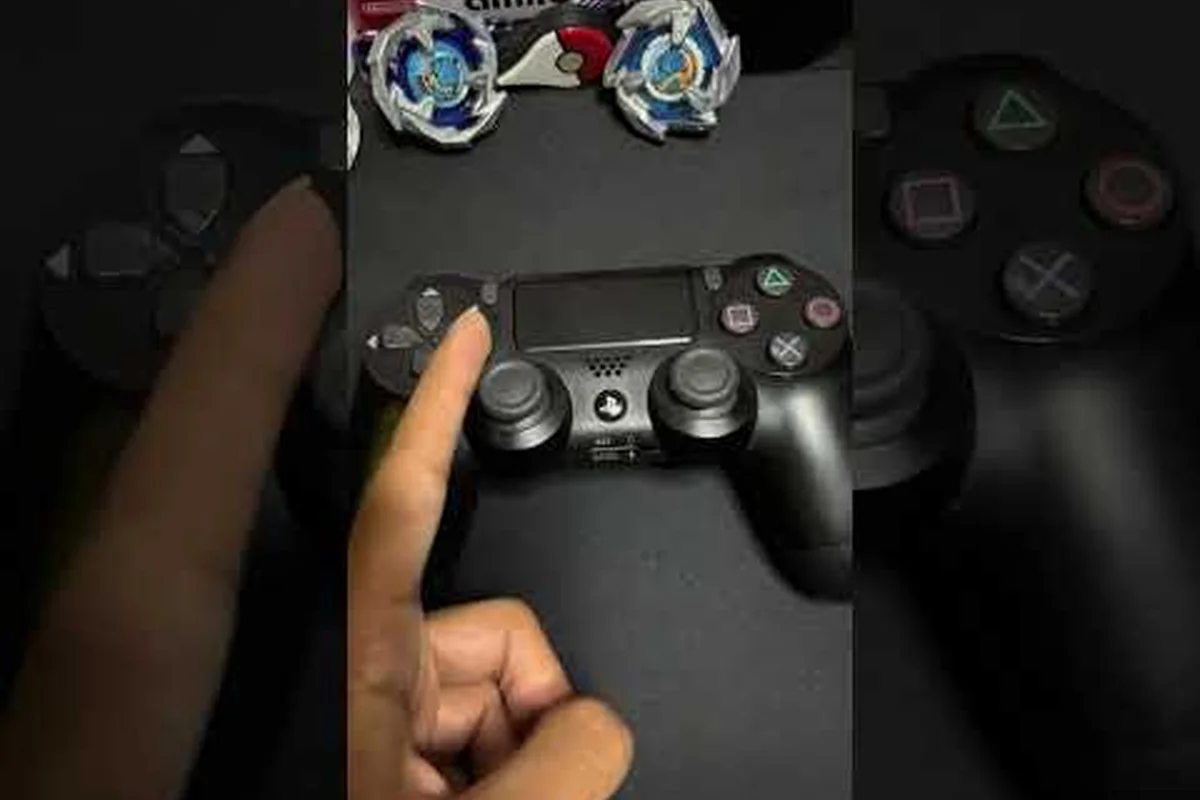
Blue Lock: Rivals Controls and Keybinds
Set blue lock rivals controls with PC keybind changes for shooting, passing, sprinting, tackling, skills, and awakening in Roblox.
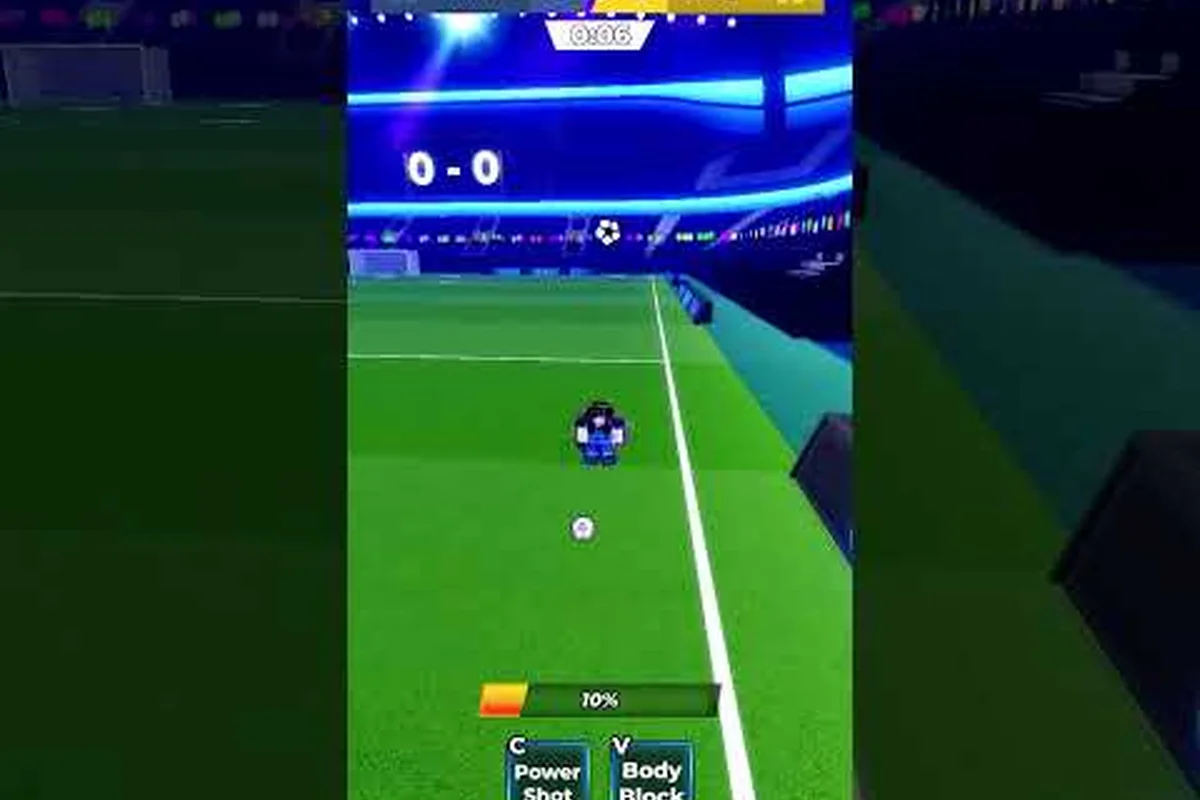
Blue Lock: Rivals Camera Settings for Low Ping
Optimize Blue Lock: Rivals camera settings with camera-lock, performance, sensitivity, and lag fixes for clearer, more responsive play.
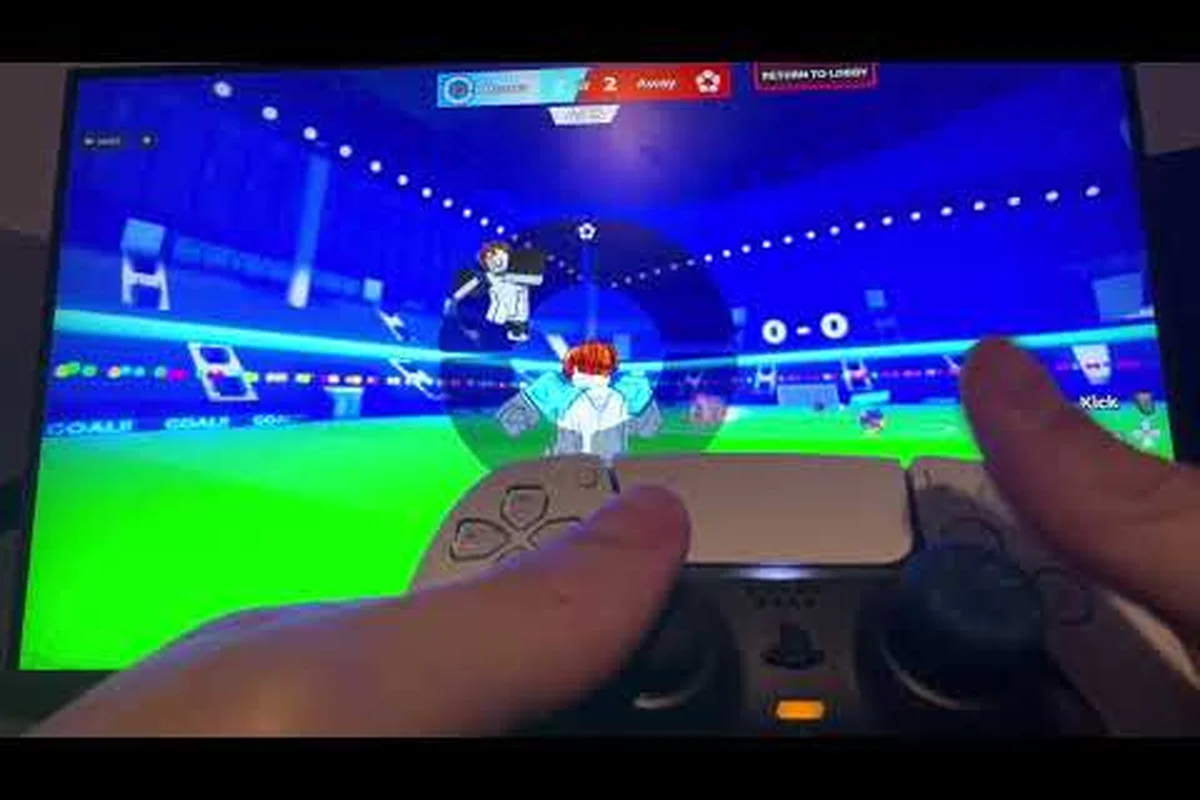
Blue Lock: Rivals Xbox Controls and Controller Support
Use blue lock rivals xbox controls with a clear PS5 and PlayStation comparison, controller setup details, and tips for cross-platform matches.
All Articles
Blue Lock: Rivals Flow Key and Emote Controls
Find the blue lock rivals flow key, emote controls, chat commands, mouse settings, and sensitivity options for smoother Roblox matches.
Blue Lock: Rivals Mobile Controls Guide and Touch Layout
Master blue lock rivals mobile controls with touch layouts, graphics settings, and performance tips for smoother Roblox football on mobile.
Blue Lock: Rivals How to Join Friends in a Match
Learn blue lock rivals how to join friends using invites, party features, private servers, and the best server region for 5v5 matches.
Blue Lock: Rivals Shoot Button and Keys
Find the Blue Lock: Rivals shoot button and action keys for passing, tackling, sprinting, skills, and awakening on PC and controllers.