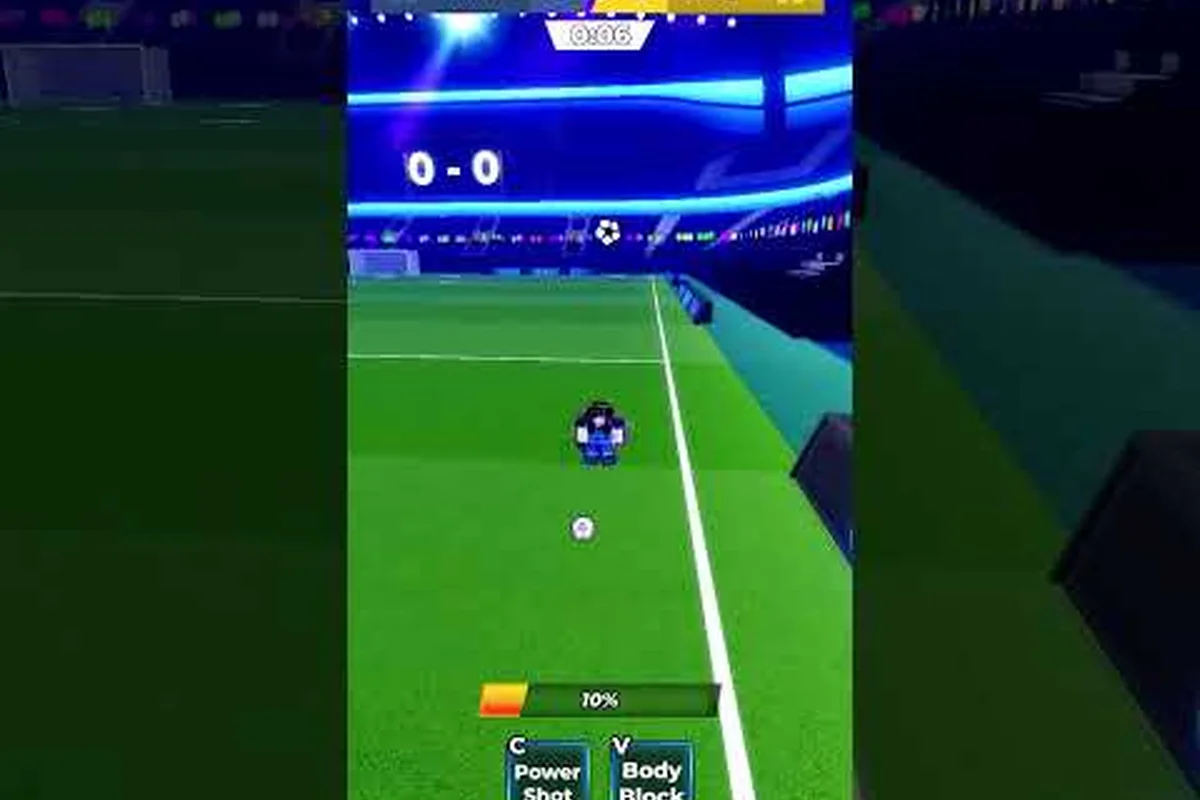
Blue Lock: Rivals camera settings can make fast matches easier to read and control, especially when camera movement competes with passing, tackling, and Style abilities. Tune the view, sensitivity, and performance options around your device, then test each change before adding more adjustments.
Camera Settings for a Clearer View
Blue Lock: Rivals camera settings determine how easily you track the ball, locate open teammates, and react to opponents moving into space. The right setup is not a universal preset: it depends on your screen size, mouse, connection, and preferred play style. Start with camera stability, then adjust mouse sensitivity, and only then add performance changes that preserve the visual cues you need.
The official Blue Lock: Rivals Roblox page as of November 2026 confirms that the experience is an unofficial, fan-made 5v5 Roblox football game. That distinction matters when evaluating advice: there is no published official settings guide or confirmed keybind chart, so you should verify available options inside your own client and treat community claims as suggestions rather than guarantees.
Camera Position and Zoom
Camera position is the first part of Blue Lock: Rivals camera settings to test. A wider view reveals more of the pitch and helps with passing lanes, while a closer view can make the player model and ball feel larger. If you often lose sight of the ball during challenges, try slightly widening the view rather than immediately changing sensitivity.
Blue Lock: Rivals does not publicly document every camera value, so avoid searching for an unverified “perfect” preset. Use the lowest or highest available zoom only as a starting point, then move in small increments. The right zoom should show the ball, nearby defenders, and enough space to react without requiring frequent camera swings.
| Camera preference | Best starting approach | Main benefit | Possible drawback |
|---|---|---|---|
| Balanced match view | Middle available zoom | Keeps the ball and nearby players visible | May require slight camera correction |
| Wider tactical view | Highest available zoom | Reveals more passing lanes and defenders | Player models appear smaller |
| Close-up reaction view | Lowest available zoom | Makes the ball easier to distinguish | Peripheral awareness decreases |
| Controller play | Natural camera movement without snapping | Helps track moving opponents | Can feel unfamiliar at first |
A Reliable Camera-Lock Test
Camera lock can make the game feel steady, but it is not automatically the best choice for every player. A locked camera may reduce accidental movement while you sprint or use an ability. An unlocked camera offers more freedom to scan the field. Test each mode in the same match, using identical movements: sprint diagonally, turn toward the goal, stop near the penalty area, and attempt a pass.
Do not expect camera lock to change the match itself. The official page states that shooting, passing, tackling, sprinting, and Style abilities use separate inputs, so a stable camera should help you execute those actions, not replace them. If an action feels inconsistent, review the Blue Lock: Rivals action controls rather than repeatedly altering the camera.
| Camera-lock test | What to observe | Good result | Warning sign |
|---|---|---|---|
| Slow sprint | Does the view drift away from the ball? | Player remains centered | Camera swings unpredictably |
| Direction change | Can you keep the goal visible? | Turn feels predictable | Frequent correction required |
| Pass attempt | Does the target remain easy to locate? | Teammate stays in view | Target disappears during motion |
| Ability use | Does the view remain stable? | Action does not pull focus | View snaps in another direction |
| Defensive chase | Can you track the opponent? | Opponent remains visible | Target repeatedly slips off-screen |
Sensitivity and Input Tuning
Sensitivity controls how far the camera or view moves for a given mouse movement. Too high can make precise passes and directional changes difficult, while too low can create the opposite problem: the view trails behind your intent. There is no documented universal sensitivity value for Blue Lock: Rivals, so build a baseline from the game’s available slider and adjust based on evidence.
Set a Middle Baseline
Begin with the midpoint of the Blue Lock: Rivals best settings slider. Play in a low-stakes match and pay attention to three questions: Can you move the ball onto the center of the screen? Can you track an opponent without constantly correcting? Does your camera stop quickly when you release the mouse?
If movement feels twitchy, reduce sensitivity by a small amount. If the view continues drifting after you stop moving, increase it slightly. Make no more than one major change at a time because altering zoom, camera lock, and sensitivity together makes it impossible to identify which setting caused the improvement.
| Symptom | Likely setting relationship | Adjustment | Verification |
|---|---|---|---|
| Camera overshoots the target | Sensitivity may be too high | Lower it slightly | Center the ball with one movement |
| Camera stops short repeatedly | Sensitivity may be too low | Raise it slightly | Reach a teammate with less correction |
| View shakes during sprint | Motion setting or camera-lock conflict | Test camera lock in both states | Direction remains predictable |
| Pass target disappears | Zoom or sensitivity mismatch | Test wider zoom first | Teammate stays visible longer |
| Smooth aim, poor movement | Input configuration conflict | Review mouse-related controls | Action and camera use separate inputs |
Mouse Settings and Camera Behavior
A mouse DPI change can make sensitivity feel different even when the in-game slider has not moved. Treat DPI and in-game sensitivity as one combined system: do not increase both at once. If you use a very high polling rate, verify that the game feels stable before changing graphics settings, because inconsistent frame timing can resemble sensitivity problems.
The Blue Lock: Rivals mouse and sensitivity reference can help separate camera behavior from chat, emote, or Flow controls. Keep test sessions focused: change one setting, play two or three minutes of football, and record whether ball tracking, passing targets, and defensive turns improved. This creates a practical baseline instead of relying on placebo changes.
Controller and Console Alternatives
Console players should evaluate camera behavior separately from stick or button layout. A controller’s deadzone, response curve, and stick sensitivity can affect how quickly the view moves, but exact settings vary by device and player preference. Check the game’s current control options, then compare the Blue Lock: Rivals console controls before changing unrelated graphics values.
Performance Settings for Stable Matches
Blue Lock: Rivals performance settings should prioritize a steady frame rate, visible opponents, and consistent ball movement. Lowering every option rarely improves a weak device, and extreme quality reductions can make players harder to identify. Instead, reduce expensive visual effects before removing information you need for shots, passes, and defensive reads.
The official game page lists support for PC, Xbox, PlayStation, and mobile touch, but it does not publish a universal low-end preset. Device capability, Roblox client version, display resolution, and server load can all change the result. Use the options actually available in your client, and confirm them after every update.
Which Performance Tweaks to Try First
Start with a moderate resolution, disable unnecessary visual effects, and leave the field of view readable. If your frame rate remains unstable, reduce resolution or the most demanding effect available. Avoid changing several settings together, because a clean frame-time improvement is more valuable than a higher number on a paper checklist.
| Priority | Adjustment | Reason | What to protect |
|---|---|---|---|
| 1 | Match the resolution to your display | Creates a stable rendering target | Readable player and ball outlines |
| 2 | Reduce expensive effects | Lowers graphics workload without removing controls | Ability and player visibility |
| 3 | Lower resolution if needed | Reduces pixel workload on weaker devices | Minimum comfortable image size |
| 4 | Adjust interface clutter | Reduces visual distraction | Team and ball indicators |
| 5 | Leave unrelated audio options alone | Audio changes do not fix frame drops | Voice and game cues |
Low-End PC Configuration
A practical Blue Lock: Rivals lag fix starts with reducing avoidable rendering cost. If your PC struggles, lower the resolution first and then reduce the graphics level offered by the client. Avoid chasing a theoretical maximum frame rate; consistent motion matters more than a benchmark that never appears during actual matches.
The Blue Lock: Rivals mobile and low-end settings guide provides additional context for players working with limited graphics budgets. Mobile and low-end PC devices face different bottlenecks, so copy a setting only when your device presents a similar problem.
What Not to Change
Some “optimization” recommendations have little connection to measurable performance. Installing unofficial performance scripts, replacing important interface elements, or repeatedly changing an unused setting adds risk without evidence. The game is updated on Roblox, and unverified external tools can be outdated or incompatible with the current client.
| Claimed change | Likely result | Better approach |
|---|---|---|
| Maximizing every slider | Can increase GPU or CPU load | Adjust only options tied to a measured problem |
| Using an unofficial boost script | May be outdated or unsafe | Use supported client options |
| Raising sensitivity to improve ping | Does not reduce network delay | Check the network and server route instead |
| Hiding every interface element | May remove useful match information | Reduce clutter selectively |
| Installing random “FPS packs” | No guaranteed benefit | Benchmark the official client only |
Ping and Lag Troubleshooting
Blue Lock: Rivals ping is the delay between your input and the game’s response over the network. Low ping is helpful, but it is only one part of responsiveness. A stable route, manageable server load, limited background traffic, and consistent frame delivery often matter more than a single number displayed in the menu.
A Blue Lock: Rivals lag fix should match the symptom. Rubber-banding, delayed inputs, and players who move in bursts point toward network delay or server congestion. A stuttering camera with stable input timing may instead involve frame rate or device performance. Smooth movement followed by sudden pauses can indicate unstable packet delivery or an overloaded connection.
Telling Latency Apart From Low Frame Rate
Watch the player model rather than only the ping counter. If your character stops and resumes while the match continues, the issue may involve latency spikes. If the camera stutters but inputs register normally, inspect performance settings. If teammates appear far ahead, the server may be experiencing congestion.
| Symptom | Most likely area | Check next | Useful evidence |
|---|---|---|---|
| Inputs register late | Network latency | Ping and route stability | Delay occurs on both movement and actions |
| Camera stutters | Frame delivery | Frame rate and graphics load | Audio and animation also appear uneven |
| Players teleport | Connection or server load | Ping spikes and region | Brief interruption followed by correction |
| Ball reacts late | Server synchronization | Connection stability | Scoreline continues normally |
| Lag only in one match | Temporary server issue | Join another match | Other sessions feel smooth |
| Lag only near many objects | Device performance | Graphics and resolution | Crowd scenes trigger stutter |
Practical Network Checklist
Use a stable connection, preferably wired Ethernet when possible. Close downloads, cloud backups, high-bandwidth streaming, and other applications that may compete for bandwidth. Restart the Roblox client after a major network change, and compare the displayed ping in several matches rather than trusting a single reading.
Community reports can help identify patterns, but they do not establish official thresholds. The game’s fan community has shared gameplay tips in videos such as Floaty 2’s pre-match Blue Lock: Rivals tips. Treat that video as practical community experience rather than a source of undocumented settings, and verify every recommendation inside the current game.
Isolate Changes in a Five-Minute Test
A focused test produces better results than changing the entire configuration at once. Record the starting state, make one adjustment, and then play enough time to experience attacks, passes, and camera turns. If the result improves, keep it; if it worsens, restore the previous value.
-
Record your current Blue Lock: Rivals ping, frame behavior, camera mode, sensitivity, and resolution.
-
Change one setting, preferably the option connected to the observed symptom.
-
Enter a match and perform the same actions, including sprinting, passing, turning, and defending.
-
Compare the result with your notes rather than relying on your impression several matches later.
-
Keep the change only when it produces a repeatable improvement.
Platform-Specific Settings Checklist
The best configuration is one you can reproduce. Write down the exact values you use, because Roblox updates may alter available options or reset some interface preferences. The settings below are a practical checklist rather than a promised preset, since the game does not officially document one universal configuration for every platform.
PC Checklist
For PC players, begin with a middle sensitivity, a comfortable zoom level, and the highest graphics level that remains stable during a full match. Use Ethernet when available, close bandwidth-heavy background tasks, and keep the operating system’s power mode from throttling the game unexpectedly.
| PC area | Recommended starting point | Adjust when |
|---|---|---|
| Sensitivity | Midpoint of available range | The view overshoots or trails the mouse |
| Camera | Stable, moderate zoom | The ball or target is difficult to see |
| Resolution | Native or one practical step lower | Frame delivery is inconsistent |
| Graphics | Highest stable level | Frame time fluctuates during play |
| Network | Wired, quiet connection | Ping spikes or input delay recur |
Mobile Checklist
Mobile players should favor a view that remains legible at the device’s native resolution and reduce nonessential effects before changing touch behavior. Keep the device charged, close background games, and avoid downloads during matches. A cooling improvement may help sustained performance, but it does not replace network troubleshooting when the problem is clearly delayed input.
Update and Reset Checklist
After an update, retest the current configuration because controls and graphics options may change. Save a text note with your chosen camera mode, zoom, sensitivity, resolution, and graphics level. If the game behaves oddly, reset one category rather than reinstalling repeatedly, and confirm that your client is fully updated.
Frequently Asked Questions
What are the best Blue Lock: Rivals camera settings?
There is no officially published universal preset, so begin with moderate zoom, the game’s middle sensitivity value, and the camera-lock mode that feels most stable. Change one option at a time and test passing targets, sprinting, and defensive turns. Keep the setup only if it improves consistency across several matches.
Does camera lock make Blue Lock: Rivals easier to play?
Camera lock can reduce unwanted view movement, which helps some players keep the ball and opponents centered while sprinting. It may also restrict scanning the field, so it is not ideal for every player. Compare locked and unlocked views by performing the same movements in both modes and evaluating ball visibility and directional control.
How can I fix lag in Blue Lock: Rivals?
Start by identifying the symptom. Input delay suggests a network problem, while a stuttering camera with responsive controls suggests frame-rate or graphics pressure. Use a stable connection, close bandwidth-heavy applications, reduce unnecessary visual effects, and lower resolution only as needed. A consistent client and a quiet network usually provide the most reliable improvement.
Is low ping more important than a high frame rate?
Neither number matters as much as stable responsiveness. Low ping reduces network delay, while a stable frame rate keeps movement and animations smooth. If input actions arrive late, inspect the connection; if the scene stutters while inputs register promptly, focus on performance settings. Test both conditions instead of assuming one setting fixes every lag symptom.
Should high-sensitivity players change their camera controls after an update?
Do not change several settings immediately after an update. First, verify that the game still supports your preferred control method and reproduce the issue in a match. Then adjust one variable, such as sensitivity or zoom, and compare the result with your previous notes. Keeping a written baseline makes it easier to distinguish an update change from a temporary server issue.